
How to merge PDFs and extract the pages you need
Combine a two-page set of field notes and a rose card, then save just the photo page as a separate PDF.
Put the source PDFs in order
Open PDF merger and load the two sample files. Put field-notes.pdf first and rose-card.pdf second. Use the up and down controls beside a file to move it. Download the result and open it to check that the first two pages are the notes and the third is the rose card.
Extract from the merged result
Load your merged PDF into PDF splitter. Enter 2 in Page range and download to get a one-page PDF with the cherry tree photograph. For several pages, enter a comma-separated list such as 1,3 or a range such as 2-3. Count pages from the first sheet in the file, even if the printed page numbers start somewhere else.
Open both results to verify the page order
The sample field guide has three pages and the extracted PDF has one. For your own files, check the page count and open the pages you plan to share. Use unencrypted PDFs up to 500 MB each. The tools process the files in your browser.
Sample files and results
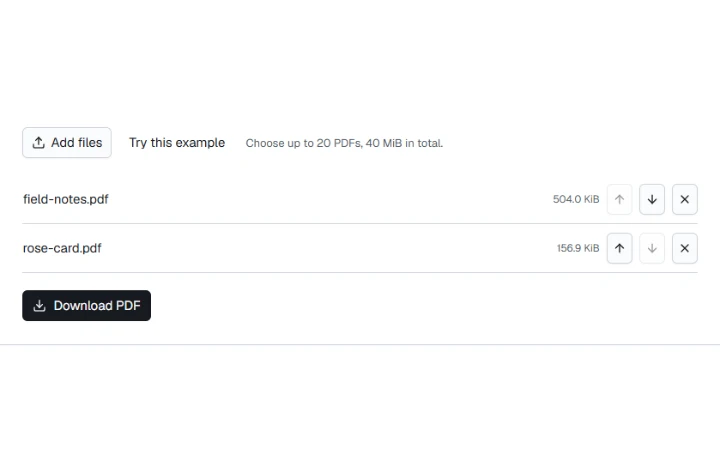
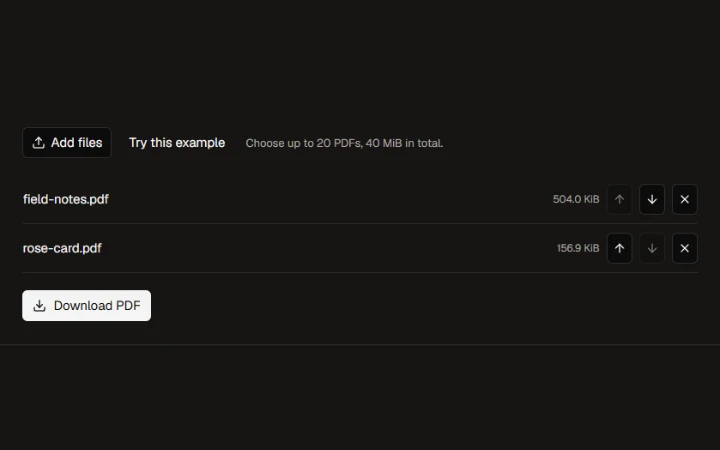
Photo credits: Wild cherry photograph by Benjamin Gimmel · CC BY-SA 3.0 · Yellow Rose photograph by Jon Sullivan
