
How to compress an image without losing useful detail
Use one photo to see how pixel dimensions, format, and quality affect the size of a web image or email attachment.
Start with the size you need
Check where the image will appear. A full-width photo in a field guide benefits from more detail than a small email attachment. In Image compressor, open the sample at the original size or set Longest side to 800 px. The shorter side scales with it.
Try a format and compare
For the field guide, keep the sample at 1024 × 772 px and export WebP at 78% quality. That saves about 16% compared with the original JPEG. For the email, choose JPEG at 78% and cap the longest side at 800 px. That gives 800 × 603 px and saves about 45%. The second result changes both dimensions and encoding, so use it as a separate size target.
Check the details before saving
Move the comparison slider across fine features such as branches or small text. If detail looks smeared, raise quality or restore the original dimensions. Review the actual byte count before downloading. The quality slider controls encoding and does not set a target file size, so another photo or browser can give different results. Keep the original for future exports.
Sample files and results
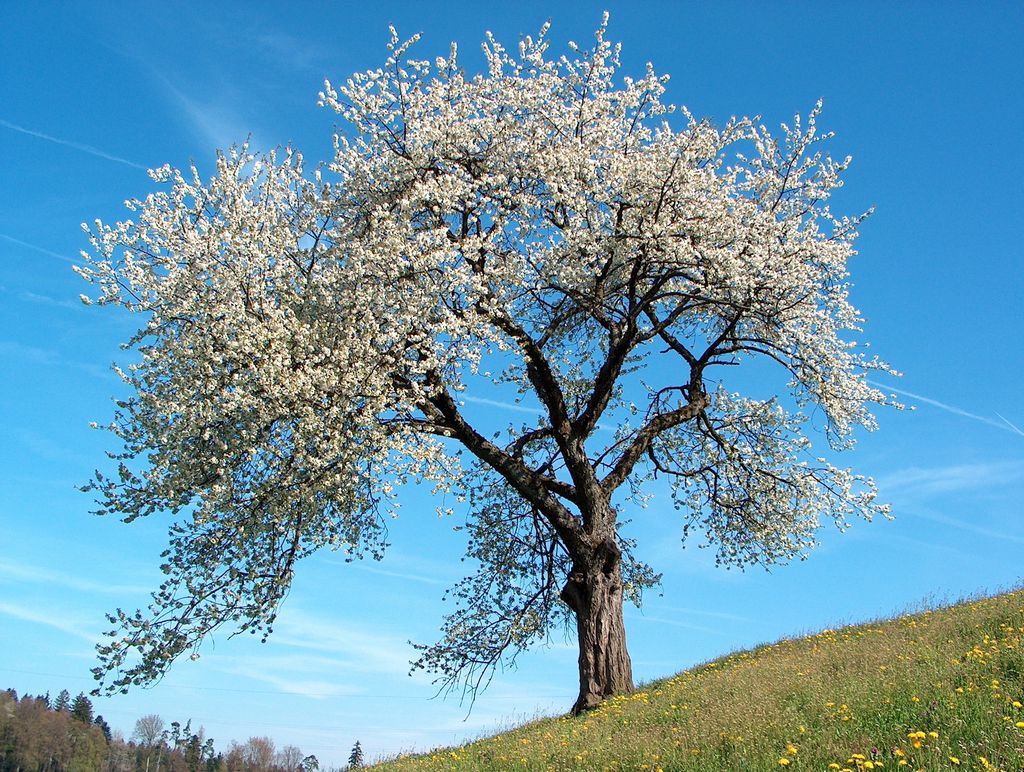
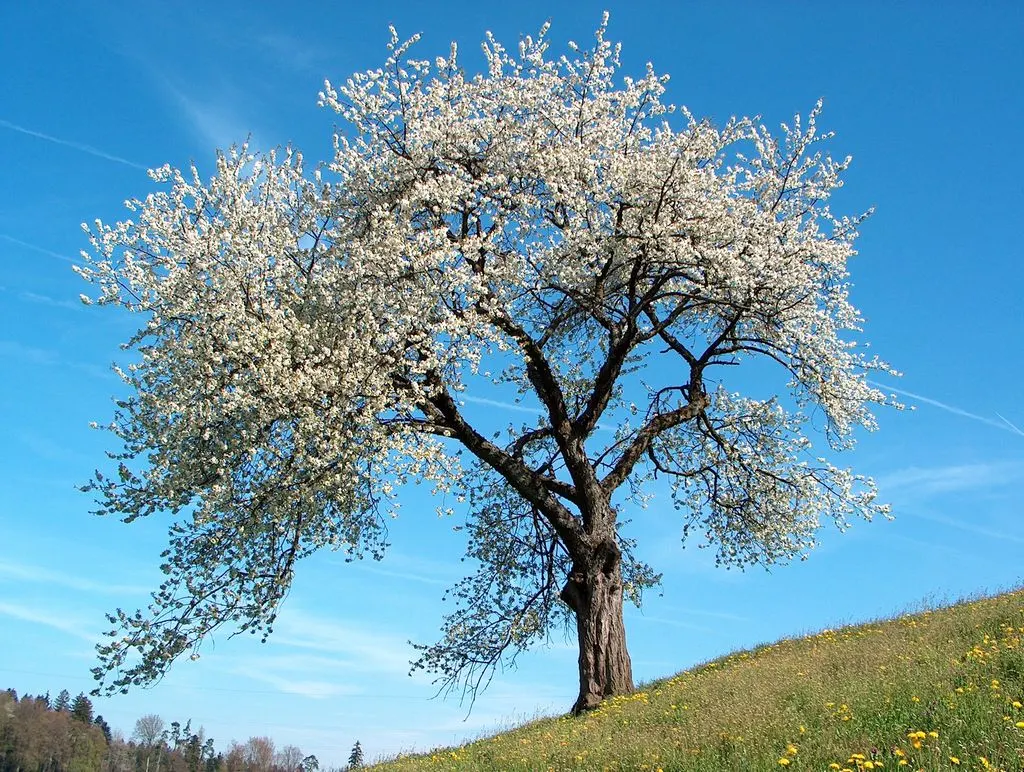
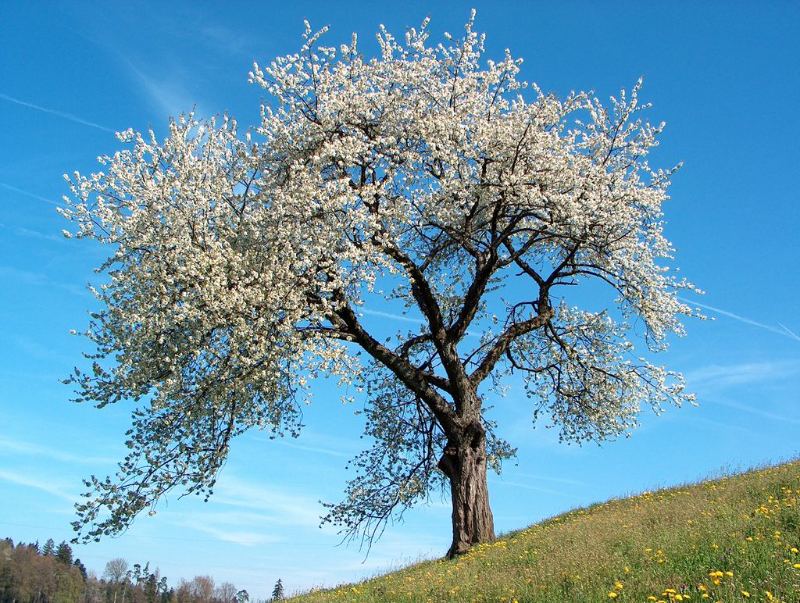
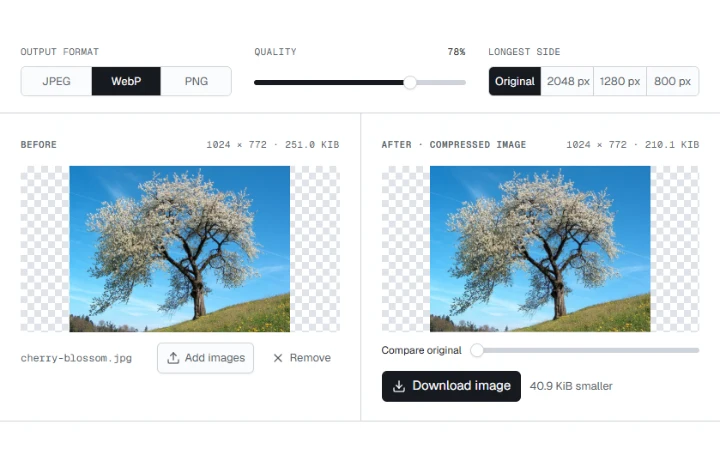
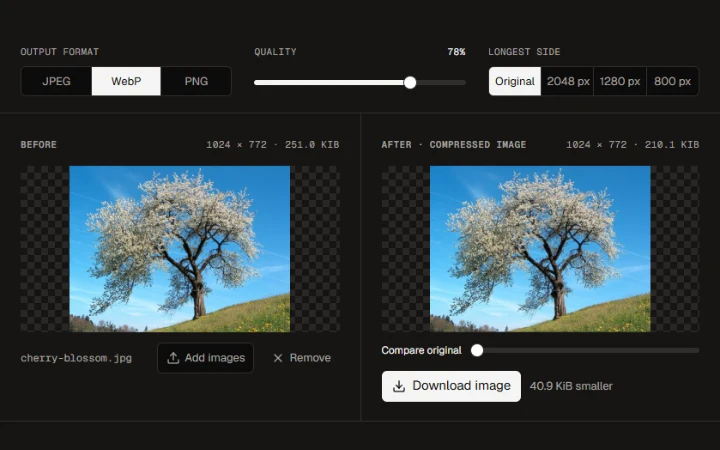
Photo credits: Wild cherry photograph by Benjamin Gimmel · CC BY-SA 3.0
