Put a cutout flower on a white price list
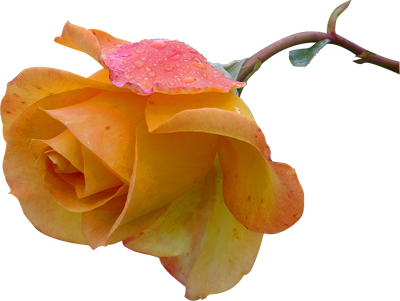
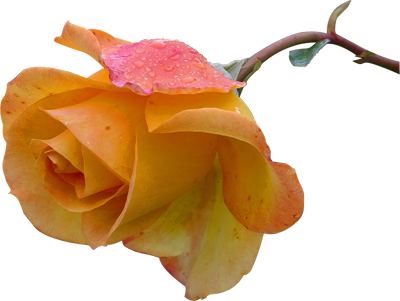
Convert the transparent rose photo to JPEG for a florist’s printable price list. Compare the white area around the stem with the checkerboard in the PNG.

Choose an output format and convert a batch of images at their original dimensions.
Opening workspace…
Select one or more images to convert.
Choose PNG or WebP for transparency, or JPEG for an opaque image.
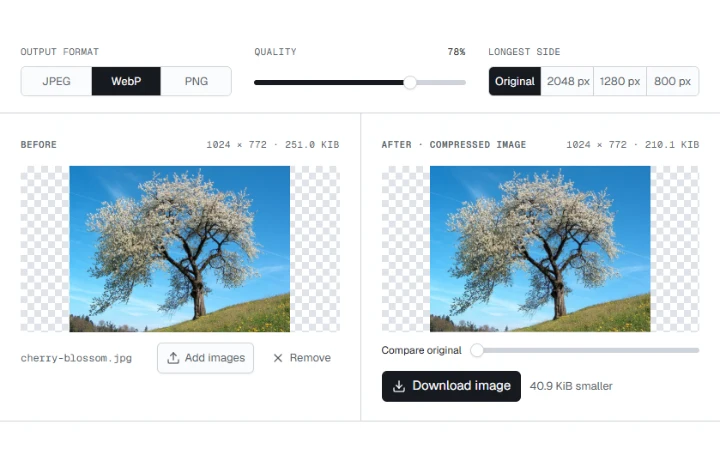
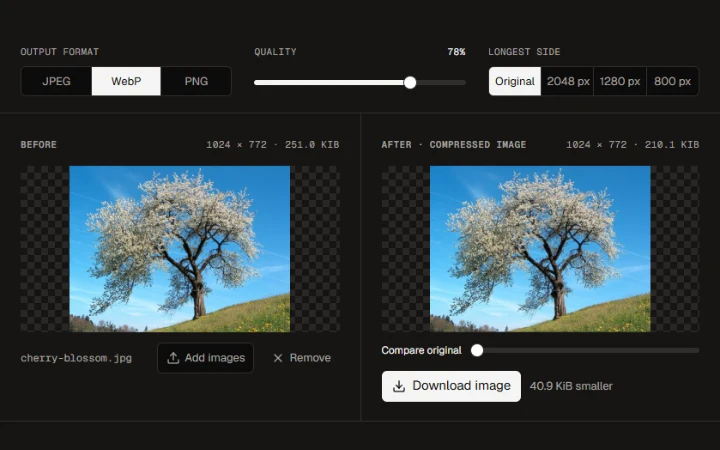
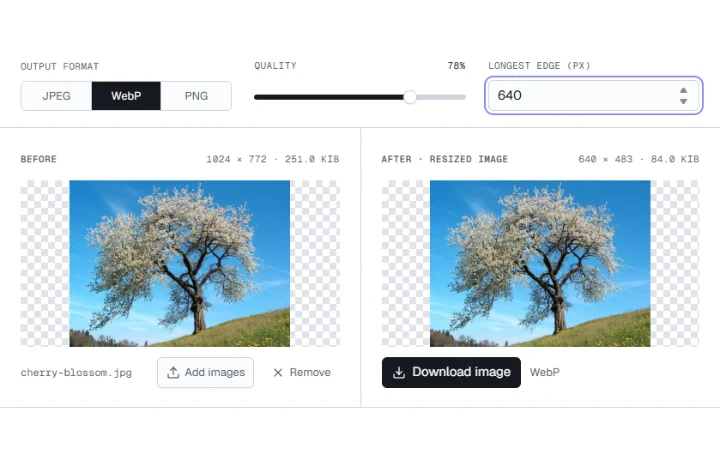
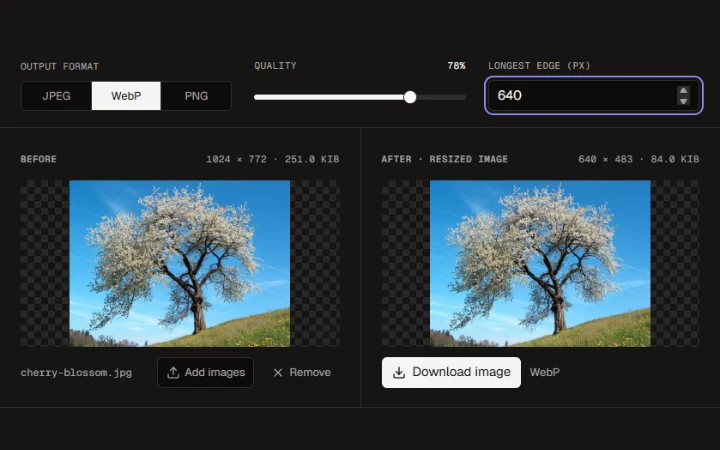
Check the background, file size and dimensions in the two previews.
Save one converted image or export several files together.
Convert the transparent rose photo to JPEG for a florist’s printable price list. Compare the white area around the stem with the checkerboard in the PNG.
Export the photographed rose as WebP at 78% quality. The checkerboard stays visible around the petals and stem, so the page color can show through.
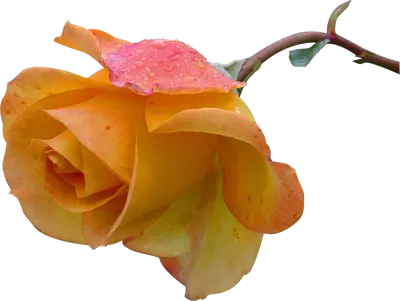
PNG and WebP preserve transparent areas. JPEG fills them with white. Conversion keeps the original pixel dimensions and exports the first frame of animated images.
Yellow Rose photograph by Jon Sullivan. Public domain.
More ways to work with images. Free to use in your browser.