Publish a photo in a spring field guide
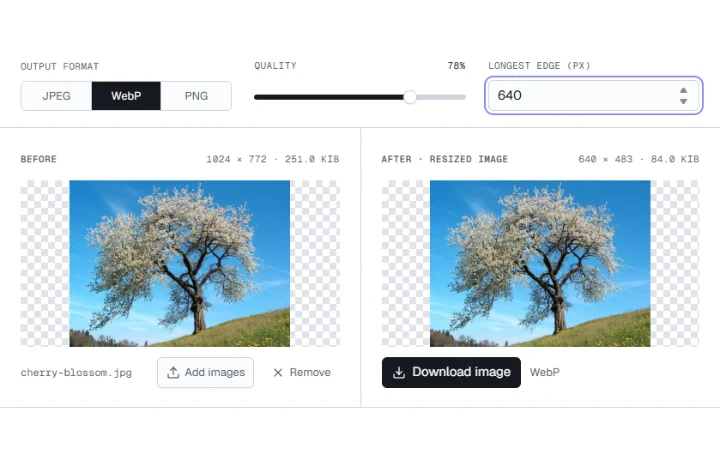
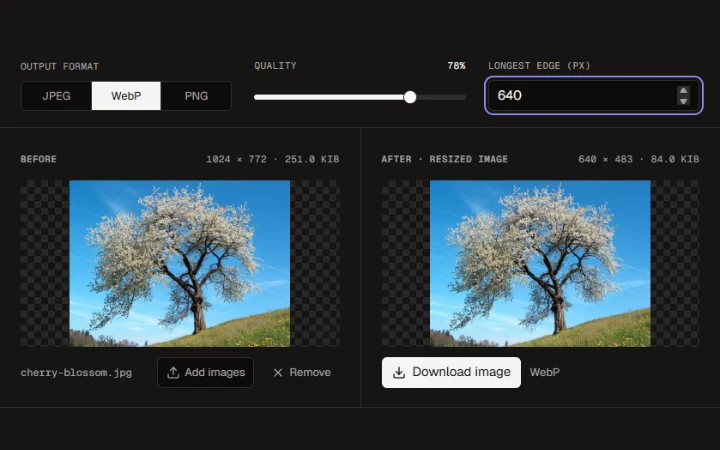
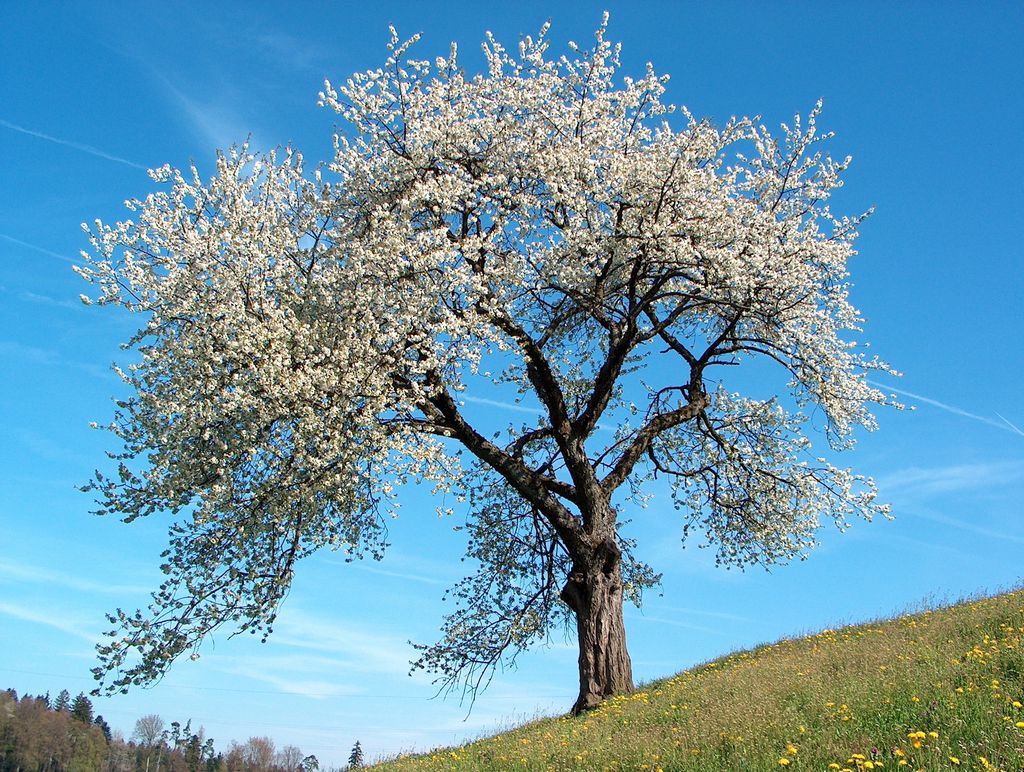
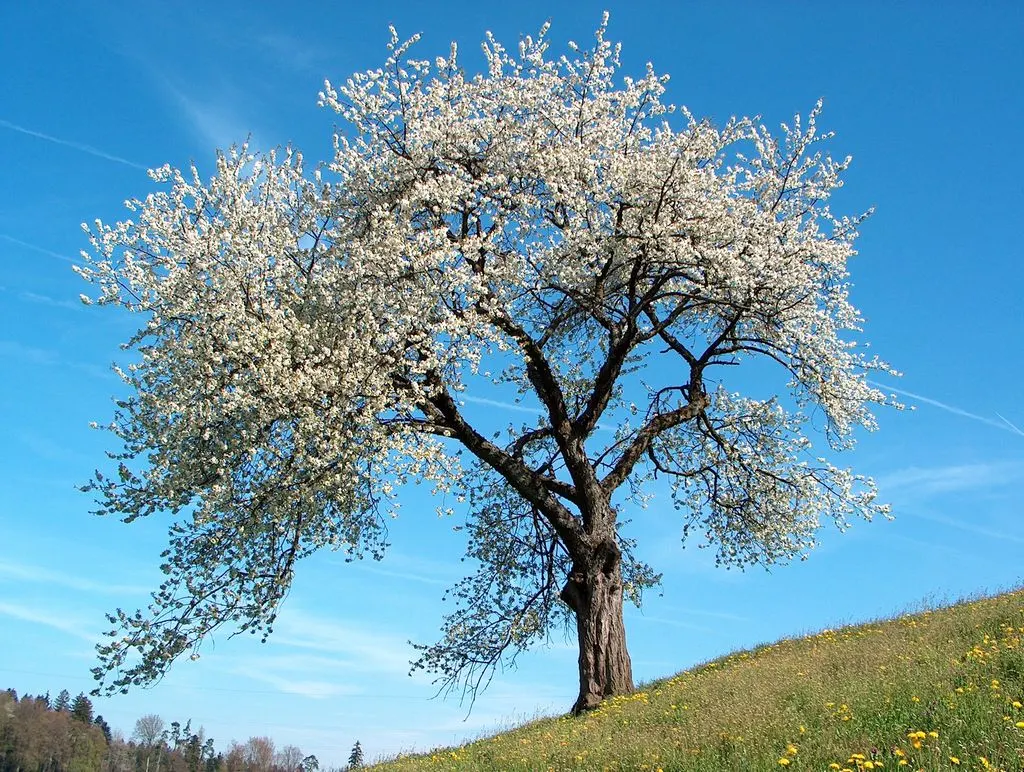
Keep the fine detail in the cherry blossoms at 1024 px across. WebP at 78% quality saves about 41 KiB on this photograph.

Adjust the quality and dimensions of your images, then compare the results. Download a single image or save the whole batch as a ZIP, right in your browser.
Opening workspace…
Drop one image or a batch into the upload area.
Pick WebP or JPEG, then adjust quality and the longest side.
Inspect both previews and their file sizes. Move the comparison slider to check fine details.
Download one result directly or download the completed batch as a ZIP.
Keep the fine detail in the cherry blossoms at 1024 px across. WebP at 78% quality saves about 41 KiB on this photograph.
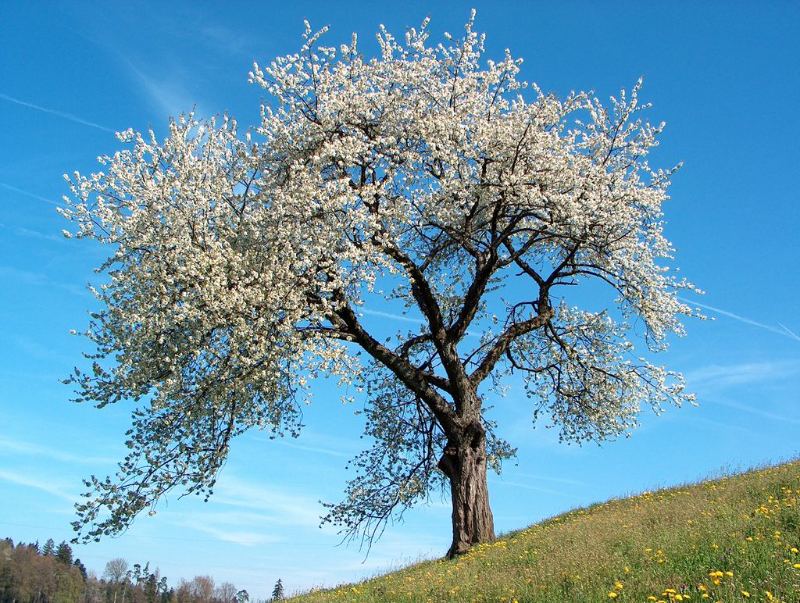
Set the longest edge to 800 px and export a JPEG at 78% quality. The newsletter attachment is about 44% smaller than the source.
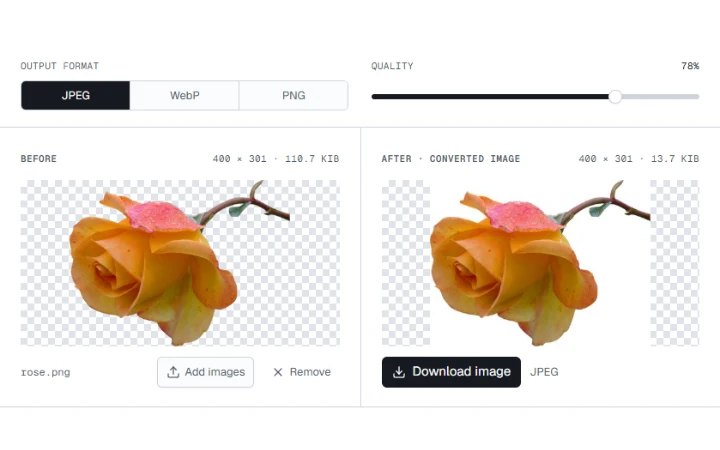
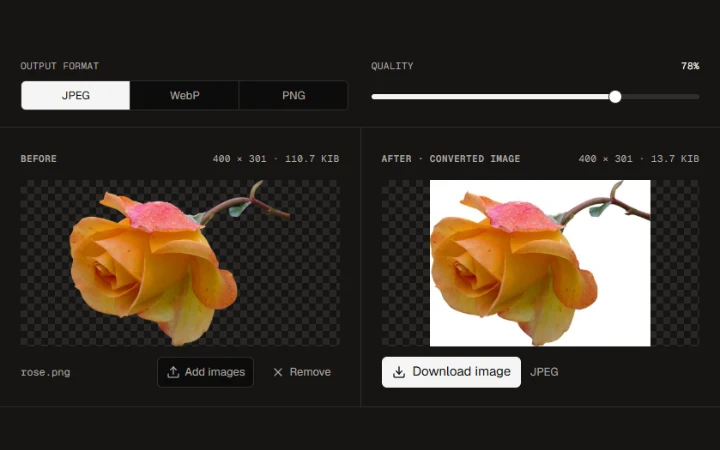
JPEG fills transparent pixels with white. Choose WebP or PNG to keep transparency. The quality setting applies to JPEG and WebP.
Wild cherry photograph by Benjamin Gimmel. Photo and resized or re-encoded examples licensed under CC BY-SA 3.0.
More ways to work with images. Free to use in your browser.