
JPEG, PNG, or WebP? How to choose an image format
Compare three exports of the same transparent rose and choose a format for photos, screenshots, or cutouts.
Choose for the destination
Use JPEG for photos when the receiving app expects it and the background can be opaque. Use PNG when you need lossless pixels for sharp text or diagrams, or want a transparent file for an editor that works with PNG. Try WebP for a web page that accepts it when you want to keep the file lighter, including when you need transparency.
Convert a transparent rose
In Image converter, load the rose PNG and select JPEG. The tool fills the transparent areas with white, making this version suitable for a white price list. Then export WebP at 78% quality from the original PNG. It keeps the transparent areas around the petals and stem, so the background of a colored page will show through.
Compare the files before publishing
All three sample files are 400 × 301 px. The JPEG and WebP exports are both smaller than the original PNG, but they differ in transparency and compression. Check the cutout on the actual page background, and keep the transparent PNG as the original. Converting the white JPEG back to PNG cannot restore the original transparency.
Sample files and results
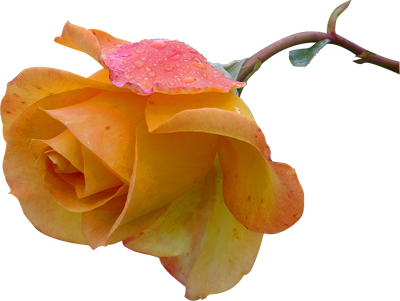

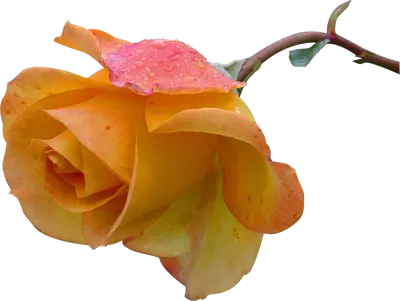
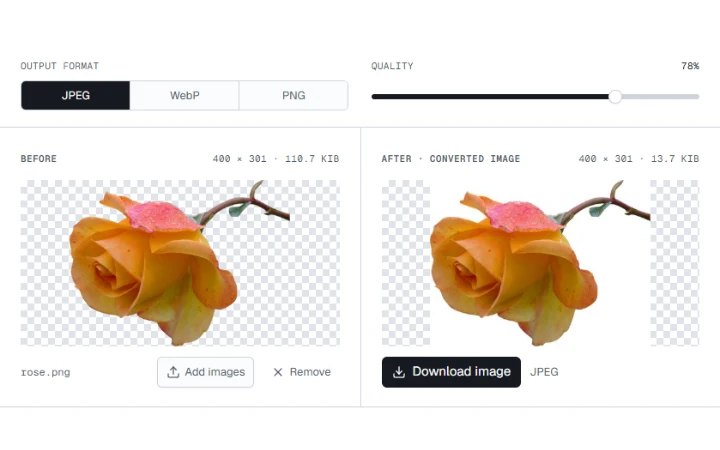
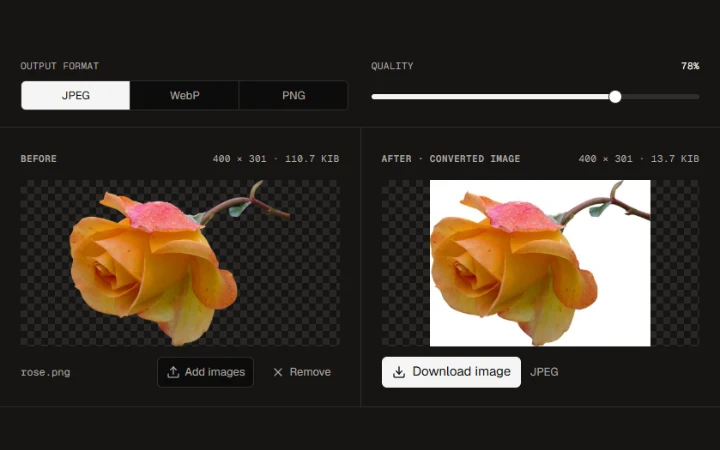
Photo credits: Yellow Rose photograph by Jon Sullivan